How does the Test Case Advisor work?
1. Folders, Forms and Fields
The Test Case Advisor examines the Edit Check steps to find Folders, Forms and Fields.
If the step specifies a Variable but not a Form and Field then the Test Case Advisor will select the first Form and Field (ordered by Ordinal), for that Variable.
If a Folder is not specified (wild-carded) in the Edit Check, the Test Case Advisor chooses one Folder for all the wild-carded Forms in the Edit Check, so that their data is entered in the same Folder. It uses the first of the following rules that finds a Folder:
if a wild-carded Form is also used in the Edit Check steps with a Folder specified, that Folder is used
if the Draft has no Folders other than 'SUBJECT', the 'SUBJECT' Folder is used
if the Test Advisor Instructions include a WildcardFolder, that Folder is used. A WildcardFolder which is not a Folder in the Draft is ignored.
if the Default Matrix for the Draft has a Folder containing all the wild-carded Forms, that Folder is used
if a wild-carded Form is used in the Edit Check steps or actions with a Folder specified, that Folder is used
if the only wild-carded Form is the Primary Form for the Draft, the 'SUBJECT' Folder is used
if another Matrix has a Folder containing all the wild-carded Forms, that Folder is used
if a wild-carded Form is added by an AddForm check action in an active Edit Check in the Draft, the Folder for that check action is used. If that check action does not specify a Folder, these rules are applied to the Form the check action is on.
if any other Folder is specified in the Edit Check steps or actions, that Folder is used
otherwise the first Folder in the Draft (by Ordinal) is used, other than 'SUBJECT'
Where a Matrix has more than one Folder containing the Forms, the Folder with the lowest Ordinal is used. The Matrix rules never choose the 'SUBJECT' Folder, and they ignore the Excluded Matrices (see below), even when the Default Matrix is one of them.
A check action which does not specify a Folder, on a Form whose Folder is specified elsewhere in the Edit Check, uses that Folder, unless the Edit Check steps also wild-card the Form. Any other check action which does not specify a Folder uses the Folder chosen for the wild-carded Forms. If no Form in the Edit Check steps is wild-carded, the rules are applied to the check action's Form.
When the Test Case Advisor uses AI (see Test Case Advisor for Custom Functions) and the AI does not give a Folder for a Form, a Form whose Folder is specified in the Edit Check uses that Folder, unless the Edit Check steps also wild-card it. Every other Form uses the Folder chosen for the wild-carded Forms. If no Form in the Edit Check steps is wild-carded, the Forms the AI gave no Folder for are used to choose it.
Note
When 'Add 2 scenarios in one alternate folder' is selected (see Test Case Advisor), the rules are applied again with the first Folder excluded, so the alternate Folder is the next one the rules find. A WildcardFolder instruction is used for both.
2. Excluded Matrices
Some Matrices are not used in normal data entry for a subject because, for example, they have been created to generate PDFs. It is not useful for the Test Case Advisor to use these Matrices when choosing a Folder (above) and these Matrices should be excluded.
TrialGrid has a default list of Matrices which it will exclude:
ALL
ALL_FORMS
ALLFORMS
ALLVISITS
ALL_VISITS
ALLFORMSFOLDER
The list of Matrices to be excluded can be changed by using Test Advisor Instructions.
For example, these instructions will override the default list of Matrices to exclude:
1Settings:
2
3ExcludedMatrices:
4  - UNIQUE
5  - ALLFORMS1
6  - ALLFORMS2
Test Advisor Instructions are entered by editing a Project and choosing the 'Test Advisor Configuration' tab.
3. Test data values
The Test Case Advisor generates lists of possible values for each Field:
for Data Dictionary Fields the Test Case Advisor will select entries from the Data Dictionary. It will avoid 'Other specify' entries, unless the Code for that entry is used as a static value elsewhere in the Edit Check.
for numeric Fields (integer and floats) the Test Case Advisor will use the Non Conformant Lower and Upper ranges (if specified) as the minimum and maximum values, or will use 0 as the minimum value and the maximum value allowed by the Data Format as the maximum. The Test Case Advisor will then create a set of possible values using the minimum, maximum and values in between.
for date Fields the Test Case Advisor uses a starting point of 2 years before the current date. It then creates a set of dates around that point in time; 1 day before/after, 1 month before/after, 1 year before/after, 20 years before, 50 years before, 90 years before.
for time Fields the Test Case Advisor uses the current time and generates a list of times 1 second before/after, 1 minute before/after, 1 hour before/after
for text Fields the Test Case Advisor will use any static values in the Edit Check and an alphabetic string 'ABCDEFGHIJ'
the Test Case Advisor will not choose values which would make the Field non-conformant.
4. Solutions
The logic of the check steps and the test data values are then processed by a constraint solver. The constraint solver attempts to find a set of test data values which will 'solve' the check steps. In rare cases the constraint solver might not find a solution and an issue will be added to the Test Case, for manual resolution.
For Edit Checks, the constraint solver is run twice; once to find a solution which trigger the check actions and once to find a solution which will not trigger the check actions.
Why doesn't the Test Case Advisor generate all possible combinations of test values?
The two test scenarios suggested by the Test Case Advisor can be easily copied in the Test Case Editor if more combinations of data are desired for testing. The Test Case Advisor does not attempt to generate all possible combinations because the number of scenarios becomes surprisingly large.
For example, a common type of Edit Check might compare specific Inclusion/Exclusion criteria and the Eligibility Status:
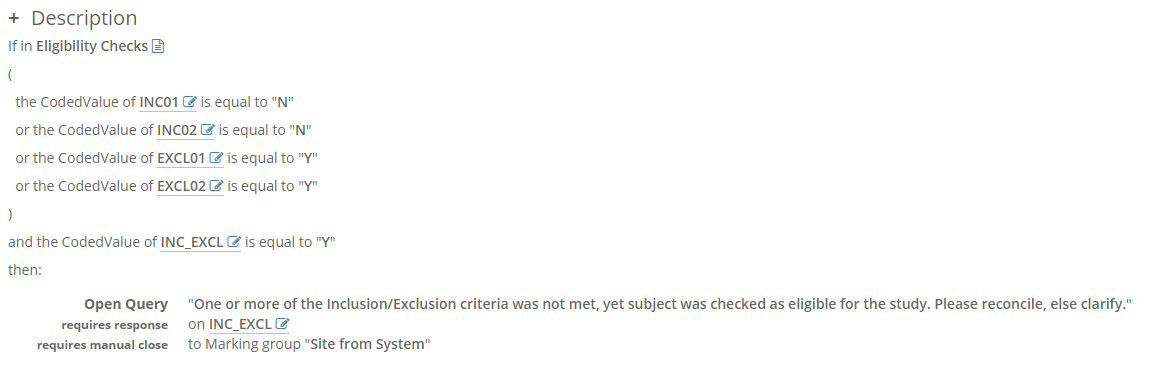
Here there are 5 Fields each of which can have 3 values (Yes, No and empty) leading to 3^5 = 243 different combinations. Already this is more than anyone would probably want to test but this example was taken from a study which actually has 9 Inclusion critera and 36 Exclusion criteria leading to 8,862,938,119,652,501,095,929 possibilities!